
1. Learning objectives
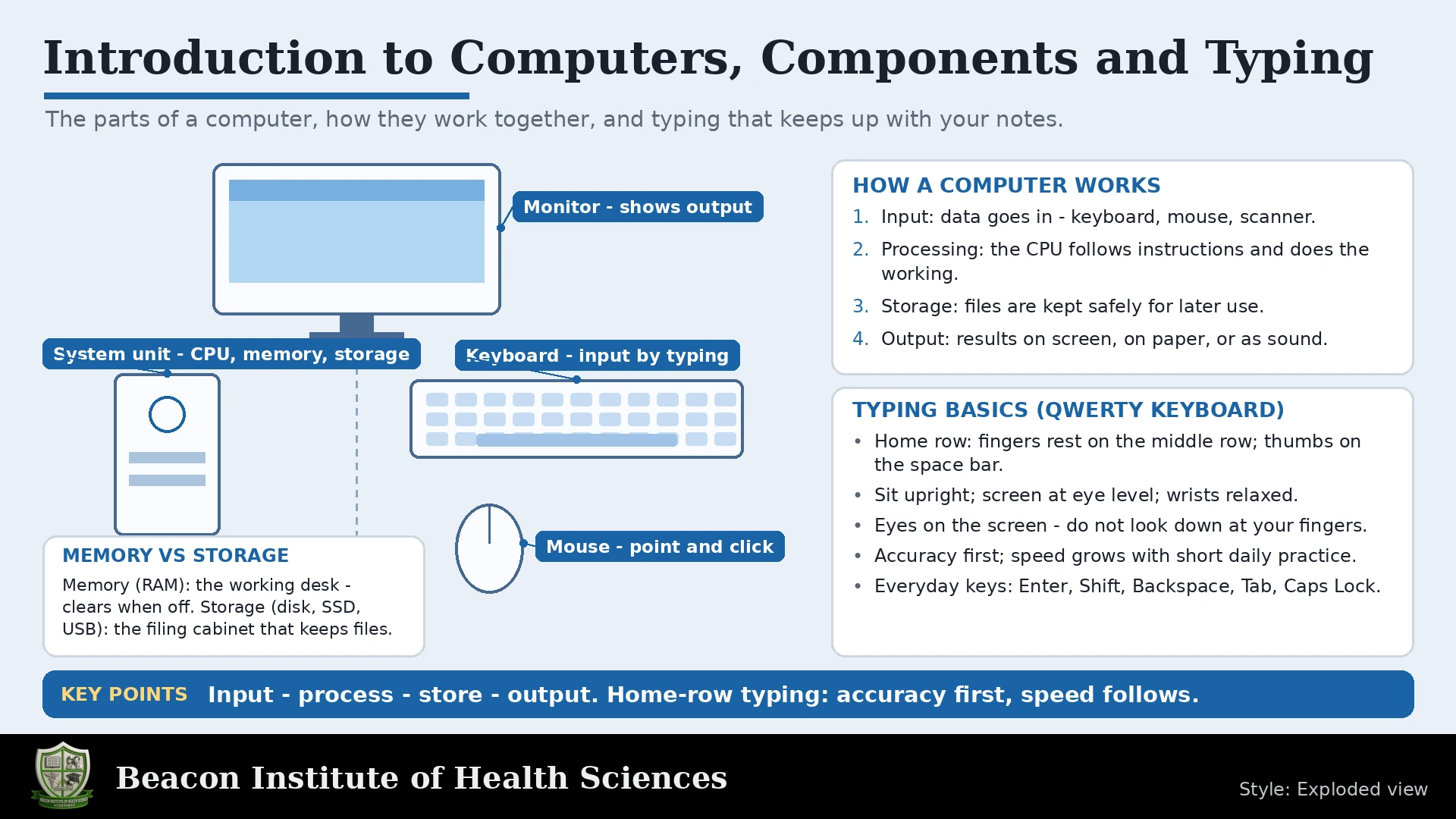
Learning objectives: distinguish hardware and software, explain input-processing-output-storage, identify computer components, manage files, type accurately and protect information. A computer follows instructions to process data into useful information. It does not understand nursing context or guarantee that entered information is correct. Use fictional data in training.
2. Hardware and software
Hardware means physical equipment. Software means programs and instructions. System software includes the operating system, which manages memory, files, devices and user access. Application software performs tasks such as word processing and spreadsheets. A desktop, laptop, tablet and smartphone differ in portability and input methods; device choice must suit the task and institutional rules.
3. Input, output and communication
Input devices include keyboard, mouse, touch screen, scanner and microphone. Output devices include monitor, printer and speakers. Storage retains files; processing transforms inputs. A touch screen is both input and output. A network interface supports communication. Do not confuse the computer case with the CPU: the CPU is the processor inside the system.
4. Internal components and memory
The motherboard connects components. CPU executes instructions. RAM temporarily holds active programs and data; ordinary RAM is volatile. SSDs and hard disks store files persistently but can fail. A power supply provides electrical power. Cooling reduces overheating. Ports connect peripherals; never force connectors. Storage capacity does not equal processing speed. One byte is eight bits; decimal GB and binary GiB differ.
5. The information cycle
Example information cycle: enter fictional attendance, calculate totals, display a summary and save it. Wrong attendance produces a wrong result even when the arithmetic is correct. Distinguish raw data from interpreted information. Avoid using educational computers for real clinical records unless approved.
6. Starting and ending a session
Basic operation: sign in to your own account, open an application, create work, save deliberately and use the normal shutdown option. Lock the screen before leaving. Restart may solve an ordinary temporary fault, but report recurrent failures. Do not disconnect power during saving or install unapproved programs. Ask support before handling internal hardware.
7. Files, folders and backups
File management: create a course folder with topic subfolders, use meaningful names and dates, retain a clear final version and keep approved backups. File extensions indicate formats, such as .docx and .pdf, but do not prove a file is safe. Rename deliberately, check the destination before moving and verify that a saved file opens. Synchronization is not the same as an independent backup.
8. Touch typing and posture
Typing: home row is ASDF for the left hand and JKL; for the right hand on a standard English QWERTY layout. Place index fingers on F and J, use appropriate fingers and return gently to home row. Keep shoulders relaxed, wrists neutral and feet supported. Arrange screen and chair comfortably. Take short breaks and prioritize accuracy over speed.
9. Keys and shortcuts
Enter starts a new paragraph, Shift modifies a key, Backspace removes the preceding character, Delete removes the following character or selection, and Tab moves focus or follows tab stops. Arrow keys move the cursor. In many Windows applications Ctrl+C copies, Ctrl+V pastes, Ctrl+X cuts, Ctrl+Z undoes and Ctrl+S saves. Shortcuts vary by platform and application.
10. Measuring typing performance
Typing measurement exercise: type 250 characters including spaces in two minutes. Using five characters as one word, gross speed is 250 divided by 5 divided by 2, or 25 words per minute. If 240 characters are correct, character accuracy is 96 percent. State the measurement method; net-speed formulas vary. Practise short sessions with punctuation and numbers, then proofread.
11. Security and equipment care
Security and health: use unique passwords and multi-factor authentication when available, avoid suspicious attachments, keep approved software updated and use institutional storage. Never copy patient identifiers to practice files, personal email or public AI tools. Clean equipment according to local instructions; do not spray liquids directly. For a fault, record what happened without exposing confidential information.
12. Practical assignment
Practical task: create a folder, type a 150-word fictional classroom report, save it, reopen it, correct errors and make an approved backup. Checklist: meaningful filename, correct location, readable formatting, accurate text, no private patient data, verified backup.
13. Answered review and recap
Review questions with answers: RAM or SSD for active temporary work? RAM. Is a keyboard input or output? Input. Does more storage automatically make a computer faster? No. Why verify a saved file? To confirm the correct content and location. Why lock a workstation? To prevent unauthorized access. Recap: accurate input, organized files, comfortable typing and secure habits matter more than speed alone.
14. Worked learning activities and final checks
A useful way to revise components is to follow one task from beginning to end. When you type a paragraph, the keyboard supplies input, the processor follows program instructions, RAM supports current activity and the screen displays output. Saving places a persistent copy on the chosen storage device. Printing creates another output, but printed pages need secure handling too. If the file was never saved, seeing it on screen does not mean it will survive a power loss.
For a keyboard drill, first type slowly without looking down whenever comfortable. Next practise capital letters, commas, full stops and numbers. Finally type a fictional report and compare it with the original line by line. Count omitted characters, extra characters and substitutions consistently. Keep a short practice log with date, duration, gross speed and accuracy. Compare progress using the same method, because changing the test length or difficulty makes comparisons less reliable.
For a folder exercise, create BSN Computer Skills, then a Typing Practice subfolder. Save a first draft with a date and version number. Close the application normally and reopen the exact file from that folder. Make one correction, save again and verify it. Copy the final file to an approved backup location, then open that copy. This demonstrates that creating a file, saving it, finding it and verifying a backup are separate skills.
Common misconceptions deserve attention. A monitor is not the whole computer, an operating system is not the same as Word, RAM is not permanent file storage and cloud access does not remove the need for permission or backups. A fast typist can still enter wrong numbers. A slow but accurate student should improve gradually rather than sacrificing correctness. In nursing-related learning, reliable information handling is the purpose of computer fluency.